
I have a client who is a Realtor in Edmonton, Alberta. Starting in October 2025, their site began getting a lot of traffic from China and Singapore. Not a trickle, either. It was enough to make every report look like the business had suddenly gone international.
Now, I’m sure Edmonton real estate has its fans. But I don’t think that many people in China and Singapore are shopping for a three-bedroom bungalow in Mill Woods. My best guess is AI scraping bots as the sessions show visits to every single page on the site, anywhere from two to ten times per session. Clearly this isn’t real human behavior!
This is also why the usual bot advice won’t help you. Most guides tell you to look for sessions with zero engagement time and a 100% bounce rate. These bots visit several pages per session, so GA4 counts them as engaged sessions. If you filter your reports down to engaged sessions, they’re still in there.
Unfortunately, GA4’s bot filtering only excludes known bots and spiders, and you can’t see or change what it removes. Headless browsers in human disguises aren’t on that list, so these sessions show up in production GA4 as if they’re real people. In this post I’ll show you my solution for removing bot traffic from your production GA4 properties once and for all.
“In a world where the Dead Internet Theory is more a reality than theory, and as our access to data recedes, using these techniques to get clean data is extremely valuable and essentially required.” — AJ Kohn, Blind Five Year Old
Want to skip right to the fix? Jump to How to Remove Bot Traffic from GA4
Why I didn't block the countries in Cloudflare
You could absolutely do this if you know you’ll never get real traffic from visitors in those countries. But that’s a blunt tool. It won’t work if you have real traffic from these countries, and these bots could just find a workaround for the blocks in the future.
So I changed the goal. Instead of keeping the bots out, I wanted to identify what I thought was spam and send it to a different GA4 property. This way, the clean data stays in the production (main) property, and nothing gets thrown away. If I’m wrong about something being a bot, I can still go find it.
Why I didn’t use filters in Google Analytics
You might also be wondering why I didn’t use filters in GA4 to deal with these sessions. GA4 can only filter traffic based on IP addresses and hostnames, and the traffic that’s filtered can’t be redirected to another property. IP addresses don’t work when bots keep changing theirs, and the hostname is your actual website so that filter doesn’t help either.
Quick fix: routing by time zone
Before building anything fancy, I tried the usual suspect for spotting a bot: the navigator.webdriver value. This is a flag that says the browser is being driven by automation. Useful, but bots can switch it off without much effort and that’s what these bots had done.
Since I couldn’t use that, what did work (at least for this client) was the time zone. Every one of these sessions reported a time zone that contained Asia. It isn’t foolproof, but I wanted to stem the tide while I figured out something better, and for an Edmonton Realtor it was a reasonable line to draw.
Capturing the time zone doesn’t take a lot of work. You can use a custom JavaScript variable in Google Tag Manager:
function() {
  try {
    return window.Intl.DateTimeFormat().resolvedOptions().timeZone;
  } catch(e) {
    return '';
  }
}
Then I route the traffic with the If Else If – Advanced Lookup Table variable template from the Community Template Gallery. The rules run in order, and the first match wins:
- If the container version is QUICK_PREVIEW, send data to the test and staging property. This is the container version when you’re using Preview mode in GTM, and this keeps my own debugging out of the production data.
- If the browser time zone contains Asia, send data to the test and staging property.
- If the page hostname matches the production site, send data to the production property.
- Anything else goes to the test and staging property.
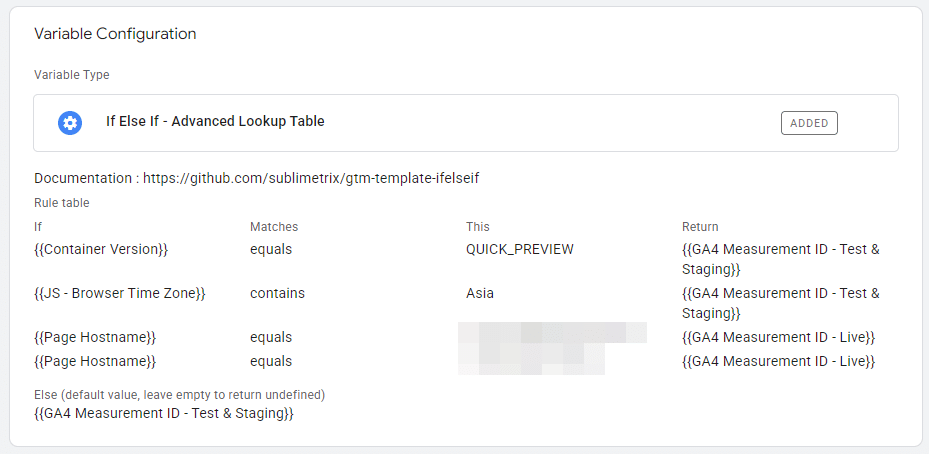
That variable is used as the measurement ID in the Google tag, so the bot traffic still gets collected, it just ends up somewhere that we aren’t using for reporting.
This worked well as a temporary fix. But it’s a time zone rule, and I have other clients with real visitors in Asia. I didn’t want a version of this that dumps a whole continent into the junk drawer.
Building a bot score instead
I wanted something that judged the browser, not where the browser said it was. So I sat down with Claude and we came up with 12 different checks to try. Each one looks for a place where a headless browser pretending to be a person tends to slip up.
Here’s the full list:
- Lie detection. Bot-hiding tools work by rewriting parts of the browser, then rewriting the tools you’d use to spot the rewriting. That second layer of rewriting can leave traces.
- The “I’m automated!” switch. This is the navigator.webdriver flag from earlier. It’s still worth checking, because not every bot bothers to change it.
- Steering logs. Common bot tools drive a browser from the outside, and that connection leaves a small trace when the page writes to its internal log. The downside is that this one can false flag if you have Dev Tools open.
- User agent inconsistencies. Browsers announce who they are (though not always accurately, as ChatGPT’s Atlas browser showed). This check compares that announcement with the details the browser reports about itself.
- Windows without frames. Server-based browsers can report their outer window as 0 x 0. A human (probably) wouldn’t.
- Fake tools. Browsers have built-in add-ons, and bot-hiding tools invent a list to look normal. You can tell whether the list is real.
- Notification contradictions. There are two ways to ask a browser whether it can send notifications. In a real browser, the two answers agree.
- No voices installed. Real computers and phones ship with text-to-speech voices. Server images usually don’t.
- Did something move? Was there a real mouse movement, tap, scroll or keystroke, and did the browser confirm the action was real?
- What graphics card was used. Real people browse on devices with a real graphics chip. Bots usually run on servers with no screen and no graphics hardware, so they fake it in software.
- Window size vs screen resolution. On a real device, the browser window is smaller than the screen, because menus, tabs and taskbars take up space.
- Network delay. Browsers can report roughly how long it takes to reach the network. Real connections are never instant, and bot connections often report zero.
Each check that failed was added to a bot score. Because the checks are separate, I was able to weight them differently, so a strong signal counted for more than a questionable one. The score and the list of failed checks were pushed to the dataLayer, and then I captured that and sent it along to GA4 with a verdict of clean or suspected_bot.
Unfortunately, some of the checks ended up being unusable for this particular need:
- No voices turned out to be unreliable. Voices can load slowly, so plenty of real browsers report none at the moment the check runs.
- Did something move? means waiting for the visitor to do something, which delays sending data to GA4. I still like this one a lot and I’ll likely come back to this later as an alternative to engagement rate.
- Window size vs screen resolution wasn’t counted toward the score, but the results were very useful! More on that in a minute.
What the data showed
I let this run for a couple of weeks, then compared browsers with an Asia time zone against everything else.
For the Asia time zone traffic, about 96% of sessions came back as suspected_bot. The most common combination of failed checks was the automation flag, a software graphics card, zero network delay, and a notification mismatch. That’s not a subtle bot.
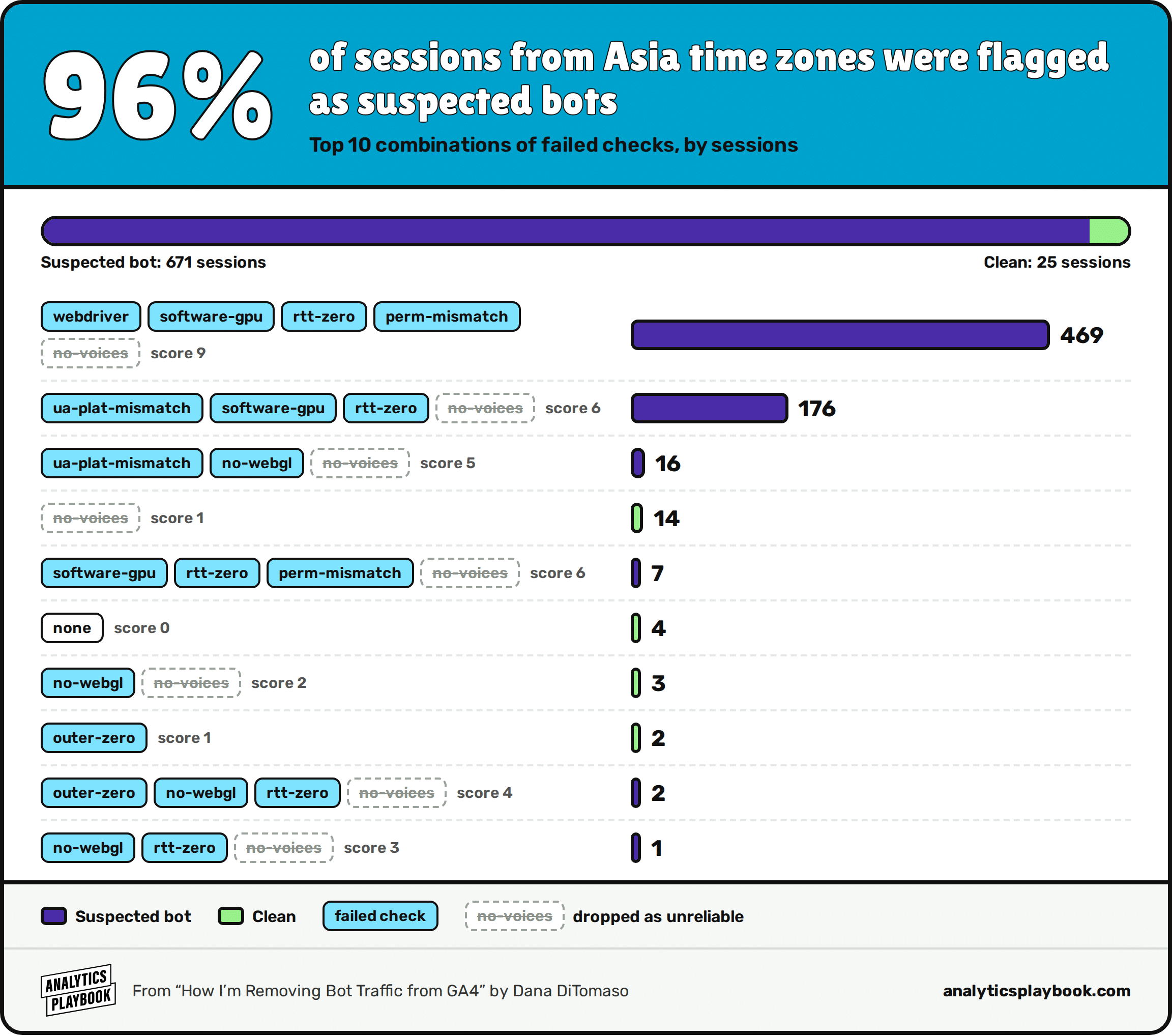
(Note that you’ll see lots of no-voices — that ended up being unusable as I noted above.)
For the not-Asia time zone traffic, the picture flipped. Only 2% of sessions came back as suspected_bot, and most of the traffic didn’t fail any checks at all.
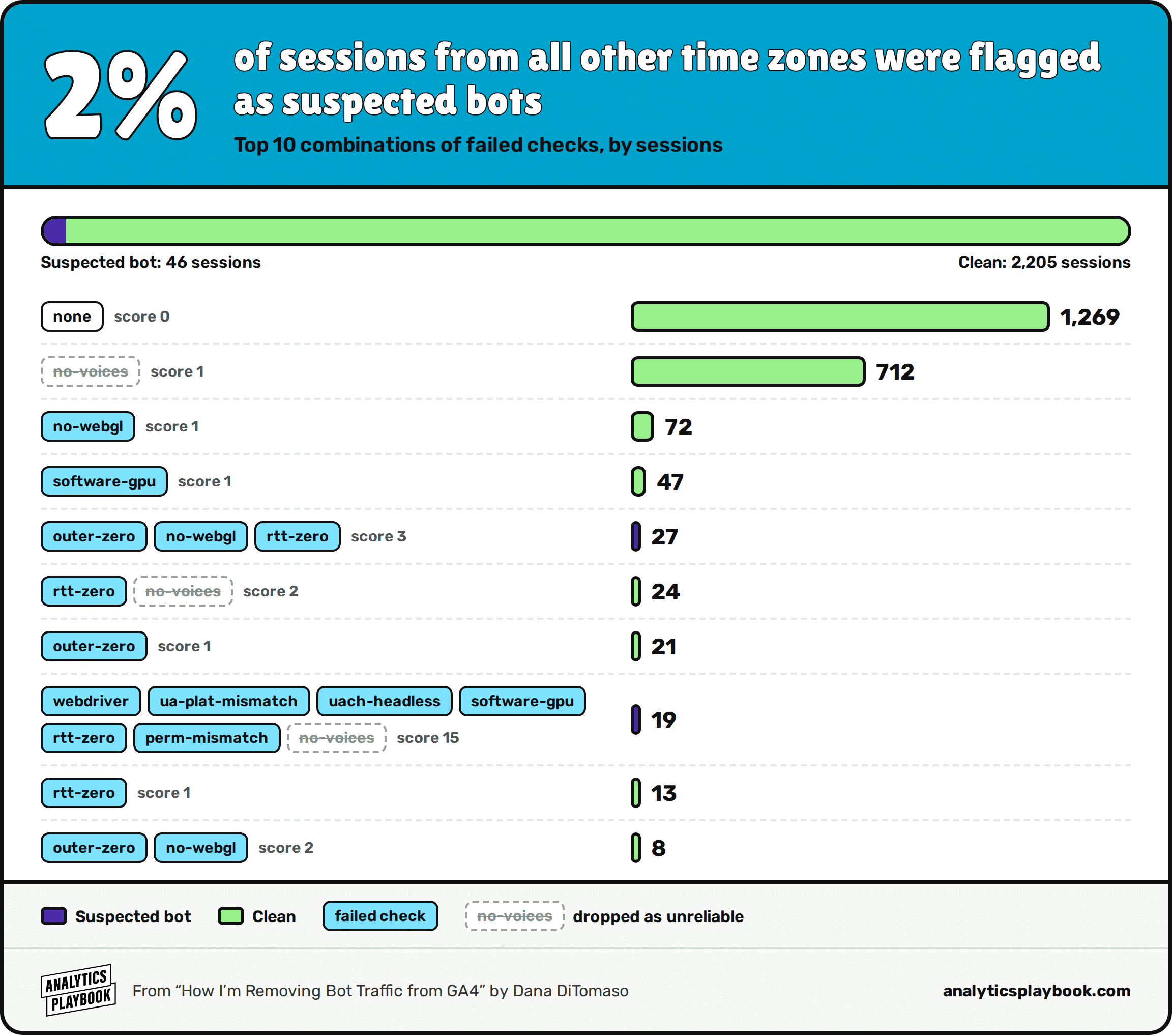
This was useful because it showed me that no-voices wasn’t reliable, but also that no-webgl was also questionable. That’s because hardened and privacy-focused browsers turn WebGL off. They’re probably not bots, they just want to keep their information private.
Now that I know which checks are most reliable, I can narrow it down. I didn’t want to run 12 checks on every page view forever if I only needed a few — or only one.
The three most useful bot-detection signals
I found these three signals to be the most useful in the end.
What graphics card was used
This was the clearest split in the data. Real visitors reported things like an Apple GPU, or an AMD or Intel chip running through Direct3D. The bots overwhelmingly reported SwiftShader, which is Google’s software renderer. That is what a browser falls back to when there’s no graphics hardware at all, like on a server in a data centre.
Why do Apple devices only report “Apple GPU”? That’s for protecting your privacy. Apple devices report the same generic name on every device so it can’t be used to fingerprint you.
One thing to keep in mind: some browsers don’t return a result here at all, because WebGL is disabled. That’s why “no result” might not count as a bot on its own.
Window size vs screen resolution
I didn’t use window size vs screen resolution in the score, but it had some very interesting results. I captured the browser window size, the screen resolution, and the device pixel ratio (the number of physical pixels per CSS pixel: 1 on a standard display, 2 or 3 on Retina screens and most phones).
On real devices, the actual browser window is smaller than the screen. A phone might show a window of 414 x 620 on a screen of 414 x 736, because the browser’s own toolbar takes up space. A desktop might show 1920 x 911 on a 1920 x 1080 screen.
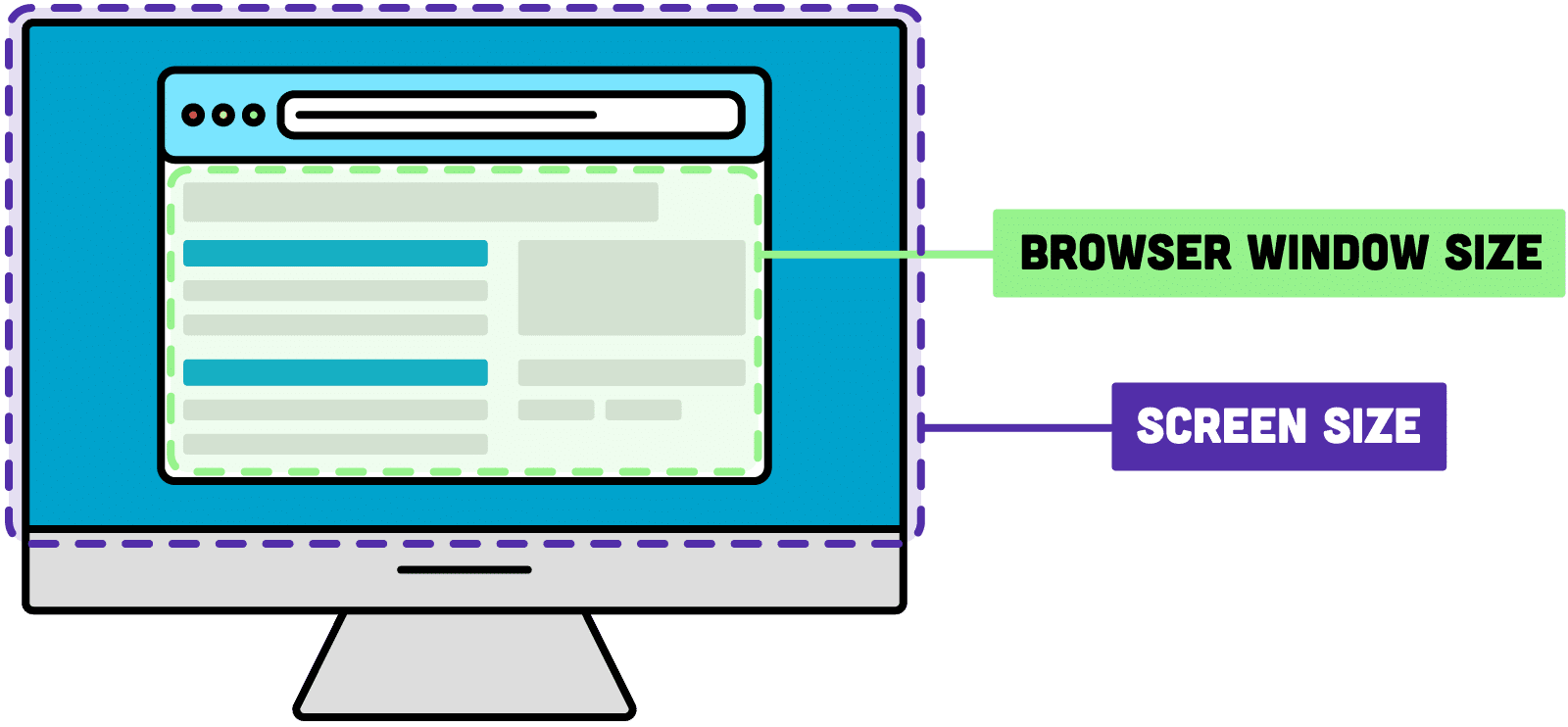
The bots reported windows that exactly matched their screens, at odd sizes like 1600 x 1600 and 1280 x 1200, with a pixel ratio of 1. A perfectly square 1600 x 1600 monitor is not a thing most people own, and most people don’t use their browser in full-screen mode.
Network delay
Real connections take time. Even a fast connection reports some delay. The bots reported zero, which makes sense for a browser sitting in the same data centre as everything it’s talking to.
Not every browser supports this check, so a missing value isn’t a red flag by itself. Chrome, which is what bots use, does report it though!
How to Remove Bot Traffic from GA4
Those three factors were the most useful, but I settled on the GPU method as it was the most reliable way to check for and filter out bots from production analytics traffic. Bots running on servers report a software GPU called SwiftShader, so I use a Google Tag Manager variable to send those visitors to a separate GA4 property.
To populate this Google Tag Manager variable, I took the GPU check and cleaned it up a bit. Now it will return either the actual GPU, or three buckets: gpu_not_found (unsure), virtual_gpu (bot), physical_gpu (human). You can then use the actual GPU values or the buckets to send visitors to different GA4 properties. You could also use the bucket as a trigger exception on your ads tags, such as for Google Ads and Meta, so suspected bots don’t get counted as conversions or added to remarketing audiences.
Important: Implementing this means that you will likely start showing less traffic in GA4 almost immediately. You’ll want to communicate this widely before turning it on! Try setting it up in a test GA4 property first to see how much traffic you might end up losing as a result.
To implement this yourself:
- Create a new custom JavaScript variable in Google Tag Manager. Insert this code:
function () {
  var OUTPUT = 'bucket';   // 'bucket' or 'gpu'

  try {
    var cv = document.createElement('canvas');
    var gl = cv.getContext('webgl') || cv.getContext('experimental-webgl');
    if (!gl) return 'gpu_not_found';

    var dbg = gl.getExtension('WEBGL_debug_renderer_info');
    var renderer = dbg ? gl.getParameter(dbg.UNMASKED_RENDERER_WEBGL) : gl.getParameter(gl.RENDERER);
    renderer = renderer ? String(renderer) : '';
    if (!renderer) return 'gpu_not_found';

    if (OUTPUT === 'gpu') return renderer;

    return (/swiftshader/i.test(renderer)) ? 'virtual_gpu' : 'physical_gpu';
  } catch (e) {
    return 'gpu_not_found';
  }
}
- Set the OUTPUT variable. If you want your data returned in buckets, keep the value as “bucket”. If you want to see the actual values, change it to “gpu”. Save the variable.
- Take your new variable and use it in a lookup table variable (or the If Else If – Advanced Lookup Table variable template that I recommended earlier) to return different GA4 measurement IDs based on the values. For example:
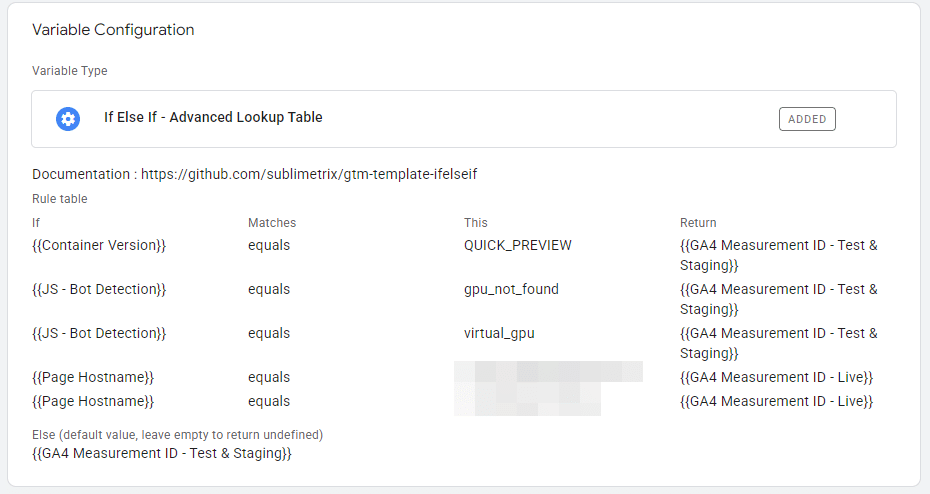
Where should you send gpu_not_found traffic? Some real people won’t report a GPU, often because of privacy settings. But Chrome is removing its automatic fallback to SwiftShader, so over time more bots will land in gpu_not_found too. If you’re not sure what to do, I recommend keeping gpu_not_found traffic in your production GA4 at first, then looking at what that traffic does. If it looks like bots, move it to your non-production property.
- Use the output of that variable as your Measurement ID for your GA4 configuration and all your events.
- Don’t forget to test and publish your container when you’re ready.
Frequently Asked Questions
If you don’t do business in Asia, it’s likely bots. In my case, they looked like AI scrapers running headless browsers on cloud servers. The pattern I typically saw was every page visited two to ten times in a session, almost all of it Direct, and a browser time zone containing “Asia”. GA4’s bot filtering doesn’t catch these, because they’re built to look like real visitors.
Partly. GA4 automatically excludes known bots and spiders, but you can’t turn it off or see how much it removed. Bots built to look like people, like headless browsers, aren’t on that list and get counted as regular visitors.
For most people, yes. However, this method won’t stop spam sent straight to GA4 without visiting your site, or crawlers that never run JavaScript. Those need different fixes. If you want to be alerted when I publish a post covering those methods, please sign up for my newsletter.
It can. Once you have a GTM variable that says whether a visitor is likely a bot, you can use it as a condition on your Google Ads and Meta tags, so suspected bots don’t get counted as conversions or added to remarketing audiences.
What's next
I’m going to keep refining this. The interaction check is the one I’ll likely work on next, because “a real person did something real on this page” might turn out to be a better measure than engagement rate, particularly as a quality traffic signal for ads networks.
If you’re seeing the same bot patterns on your sites (every page, two to ten times a session, almost entirely Direct) I’d love to hear if this helped you.

Dana enjoys solving problems that haven’t been solved before. With her 20+ years experience in digital marketing and teaching, she has a knack for distilling complex topics into engaging and easy to understand instruction. You’ll find Dana sharing her knowledge at digital marketing conferences around the world, teaching courses, and hosting a technology column.
Learn more about Dana